Bits from Bill

Technology thoughts leaking from the brain of "Bill Pytlovany"

Thursday, January 07, 2010

Access All Windows 7 Tasks with God Mode

Recently news of what some still consider an easter-egg within Windows 7 was shared via the social networks. The news spread fast due to the unique name, “God Mode”. While a much better name could have been chosen God Mode is actually a useful feature.

God Mode isn’t really an Easter-egg but will create what you might consider as a Super Control Panel.

Creating God Mode is simple. Just right-click on your Desktop or any folder and select New –> Folder from the menu.

godmode0

Just name this folder by using copy and paste.

GodMode.{ED7BA470-8E54-465E-825C-99712043E01C}

The results will be
godmode1

The truth is you don’t have to call it God Mode. Any text in front of the CLSID numbers will work. NOTE: Some report this may not be supported by x64 bit Windows. See comments.


You could also copy and paste the following.
BillP’s Super Control Panel.{ED7BA470-8E54-465E-825C-99712043E01C}
godmode4

When you click on the new icon Windows Explorer will open. The right side will include a huge number of Windows 7 configuration and management utilities. Technically this is the Windows 7 “All Tasks” list, a useful tool.

godmode2

Labels: ,

Share on Facebook


Wednesday, August 08, 2007

Customizing Your Application Sounds

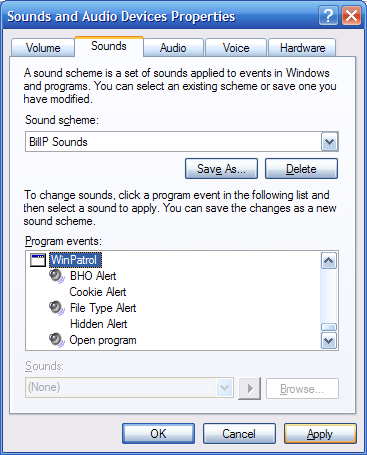
I think most folks have forgotten how easy it is to customize sound for many applications using the Control Panels, “Sound and Audio Devices” applet. I suspect most WinPatrol users aren’t aware that this feature is fully supported in WinPatrol and many other applications.

It was a nice surprise when I realized how many people missed Scotty’s bark when it was broken on Vista. It’s fixed now and obvious to me that most people really like to hear some kind of audio feedback when they’re performing certain tasks.

To customize your sounds, just go to the Start Button and select “Settings” -> “Control Panel”. Open the “Sound and Audio Devices” applet and click on the “Sounds” tab. In Vista’s control panel it’s called “Hardware and Sounds”. Besides changing your Windows Startup or Shut Down sounds, you will find a number of applications that may be customized.


Control Panel Applet, Sounds and Audio Devices


While this may come as a surprise to many WinPatrol users, this feature has been supported for a couple years. It was added at the request of some of our visually impaired users who wanted some additional feedback on what kind of alert was occurring.


Labels: , , ,

Share on Facebook